logo

Adding a domain

2

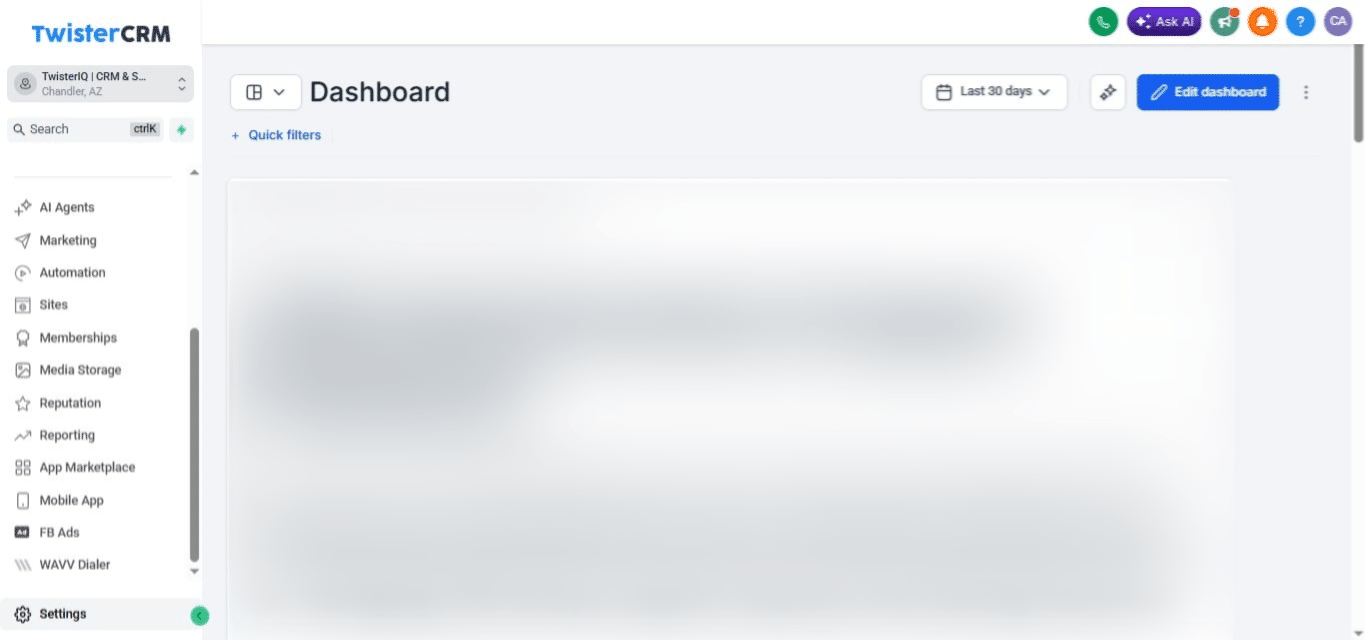
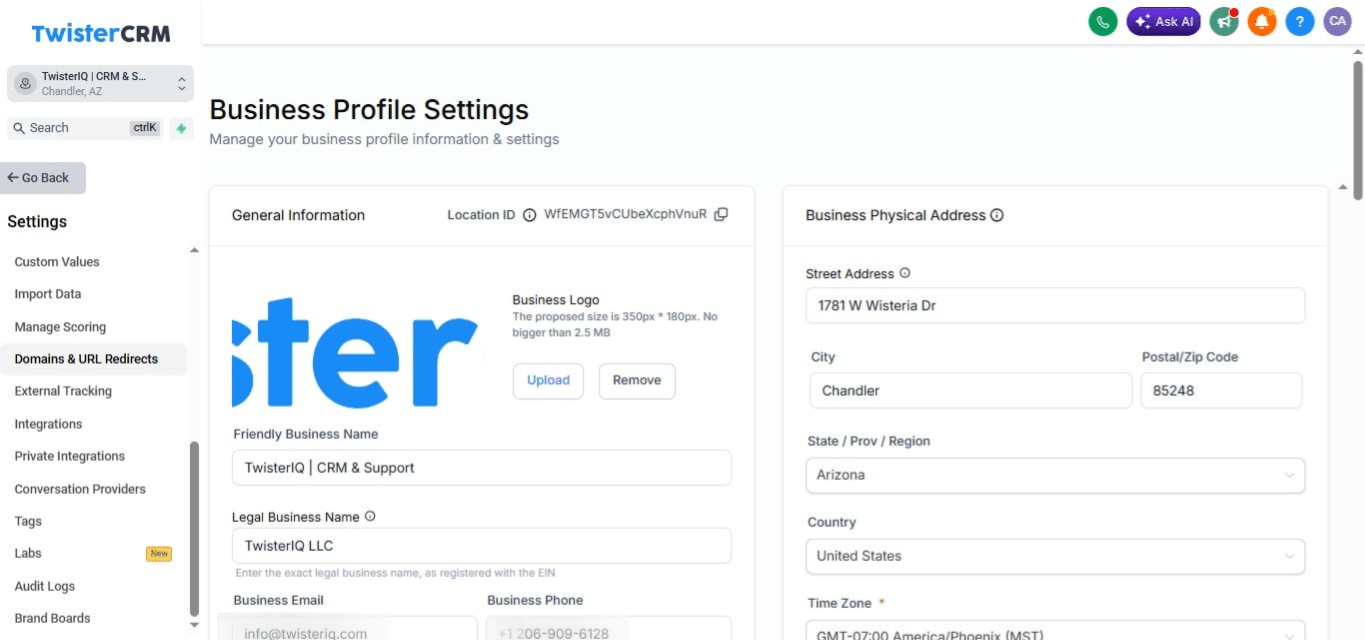
Click on Settings

Click on Settings
3

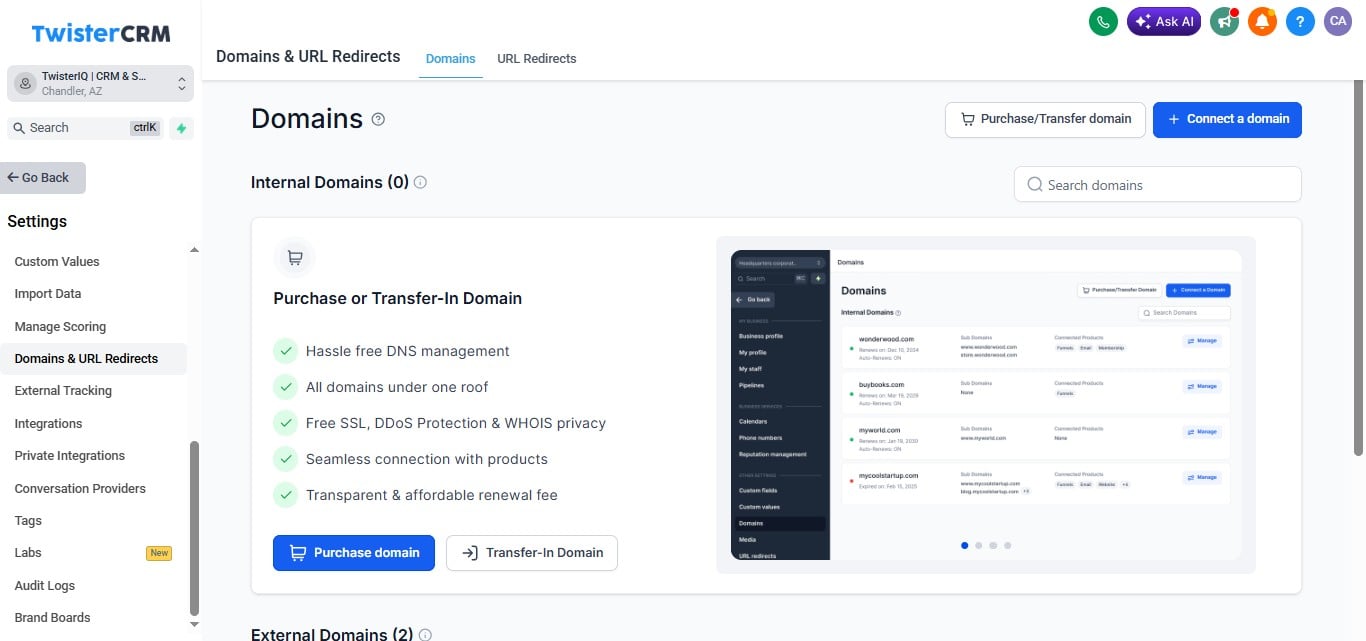
Click on "Domains & URL Redirects"

Click on "Domains & URL Redirects"
4

Click on Connect a Domain

Click on Connect a Domain
5

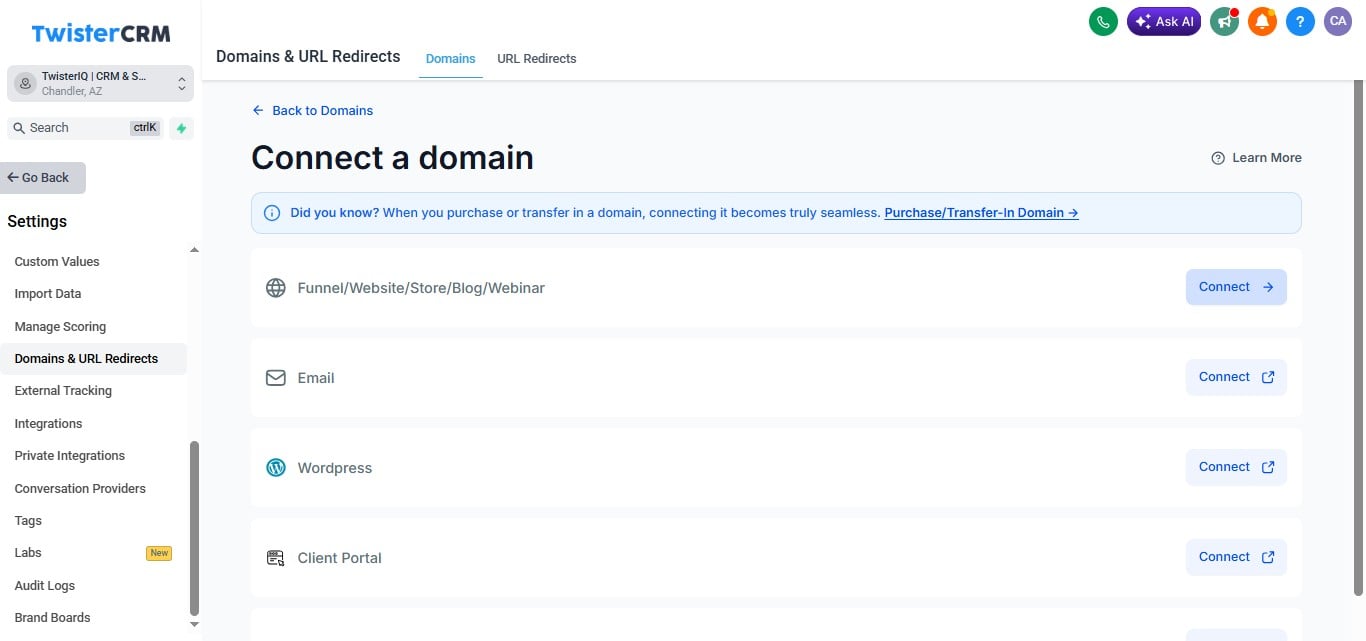
Click on "Connect"

Click on "Connect"
6

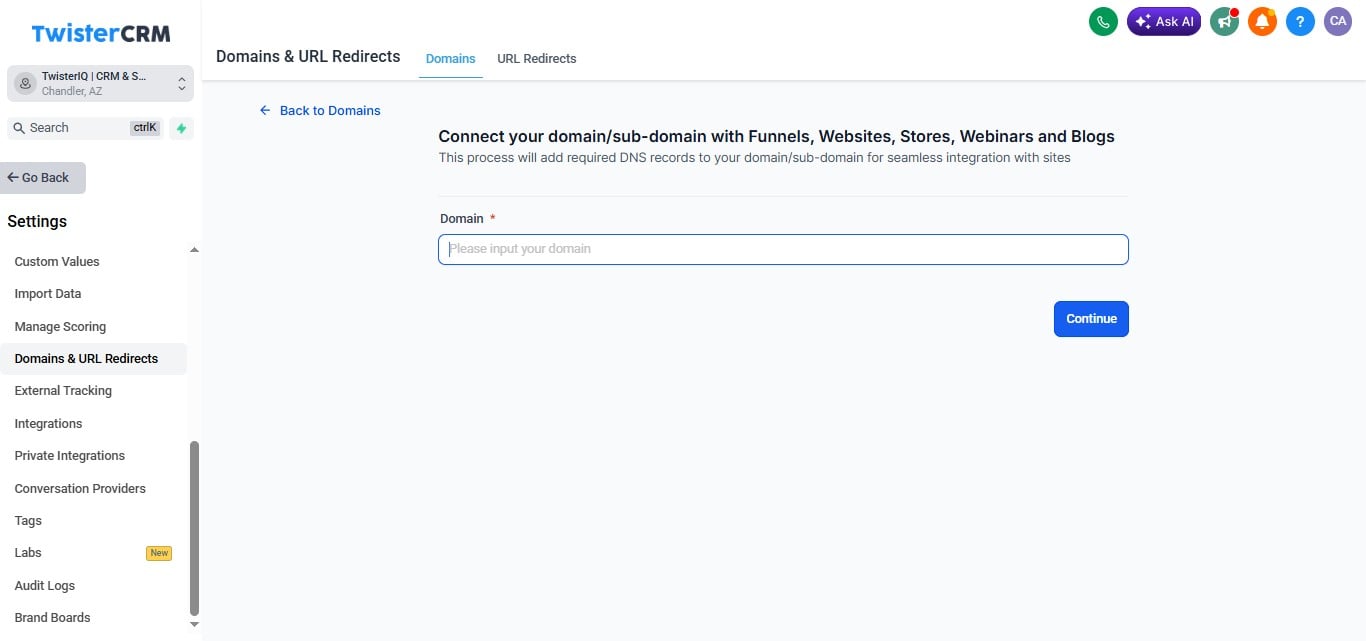
Add Domain here

Add Domain here
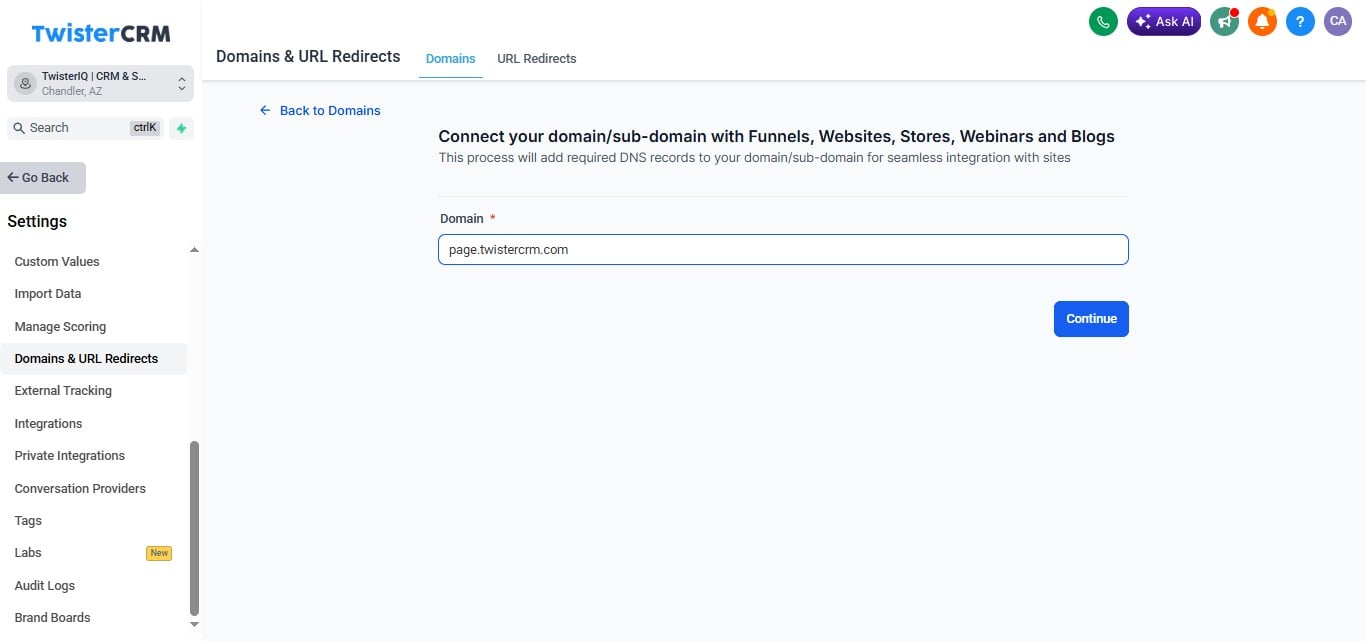
7

Click on "Continue"

Click on "Continue"
8

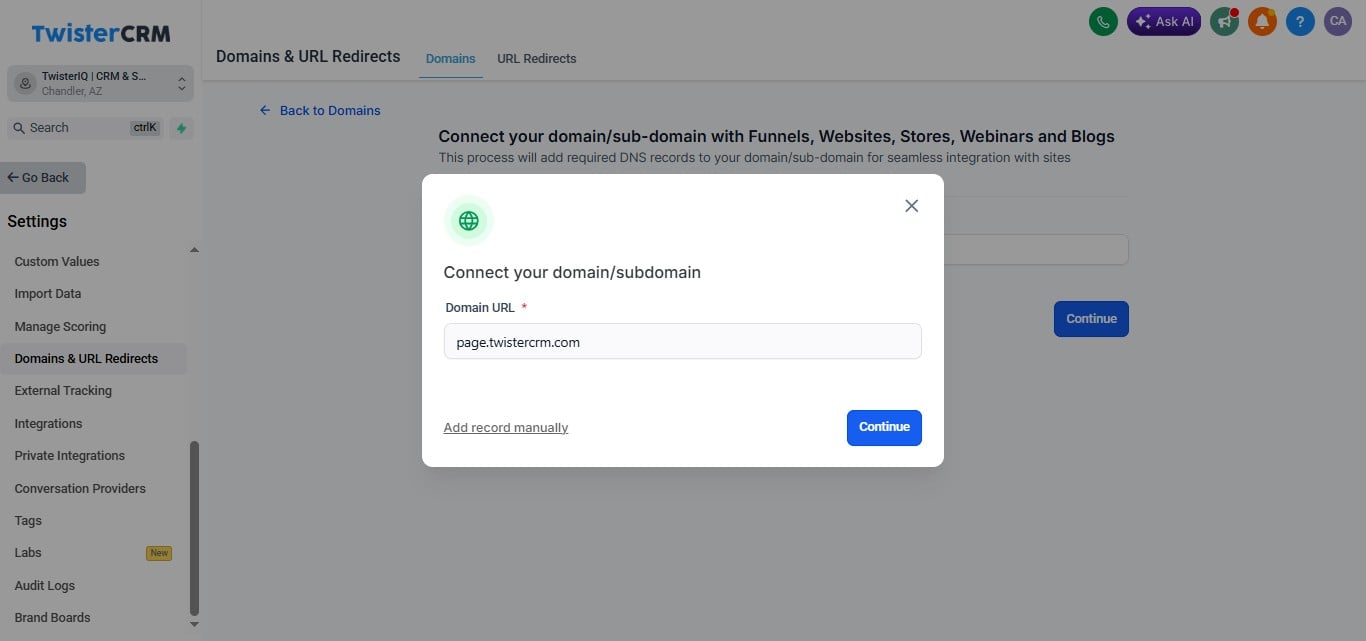
Click "Continue" to add records automatically
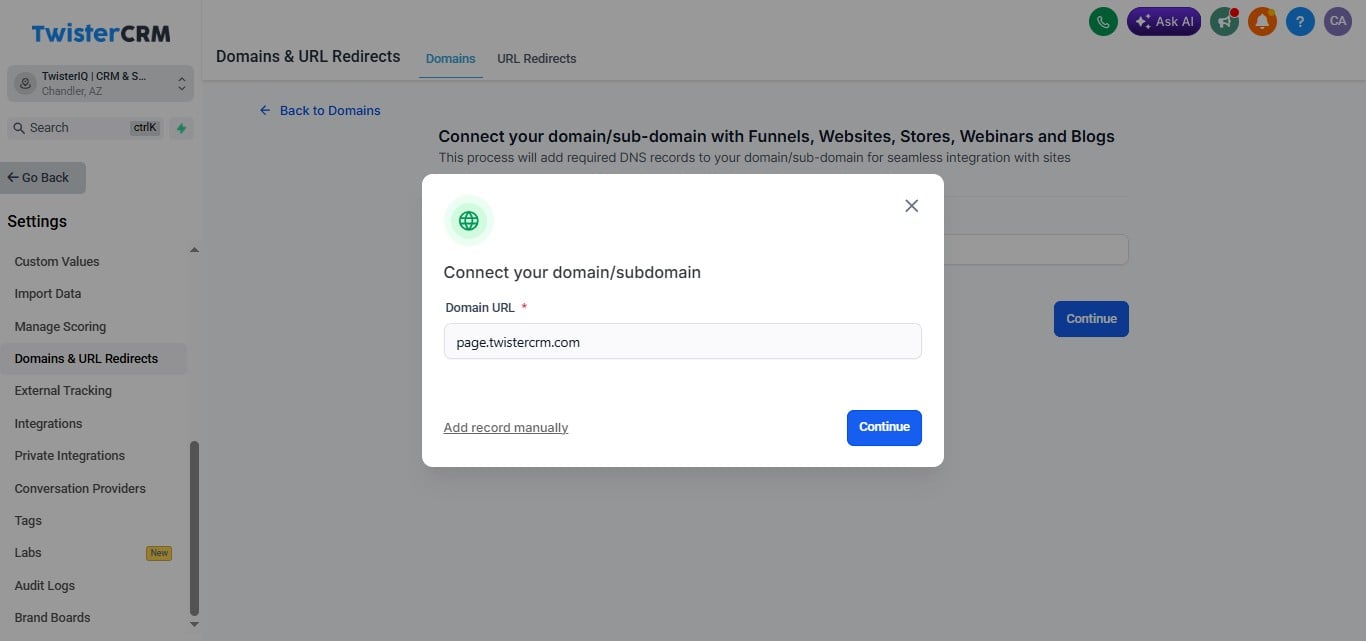
Click "Continue" to add records automatically
9

Click here to add records manually"

Click here to add records manually"
10

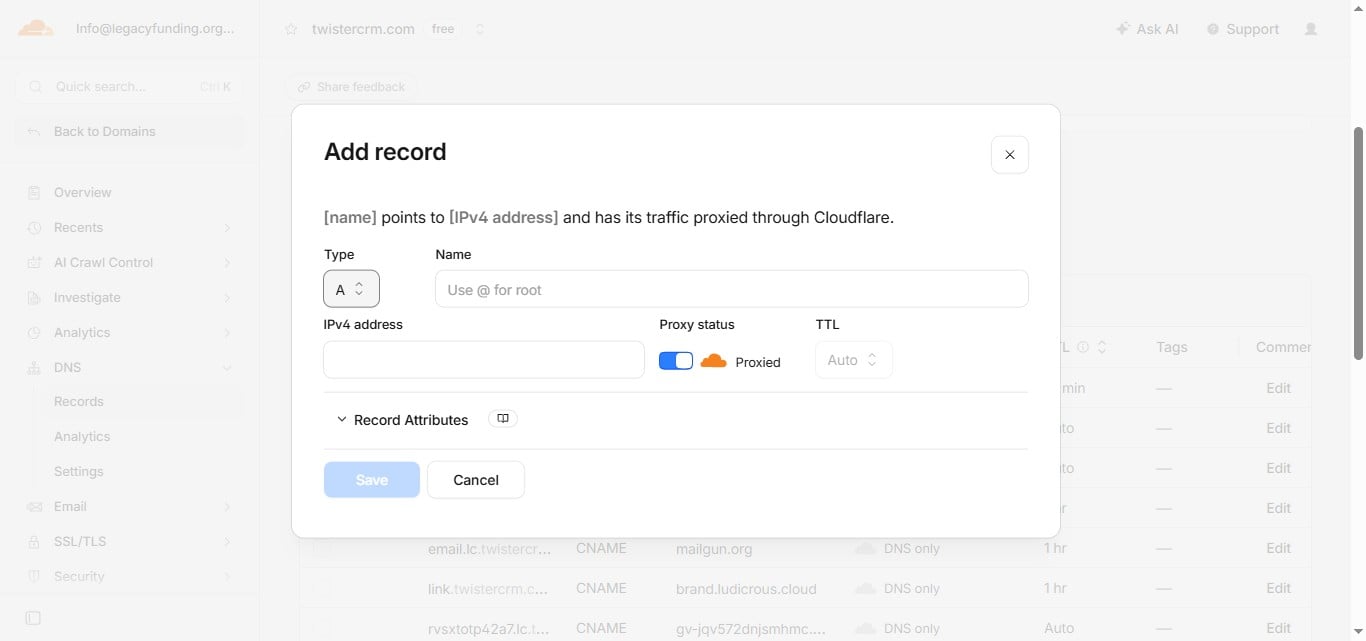
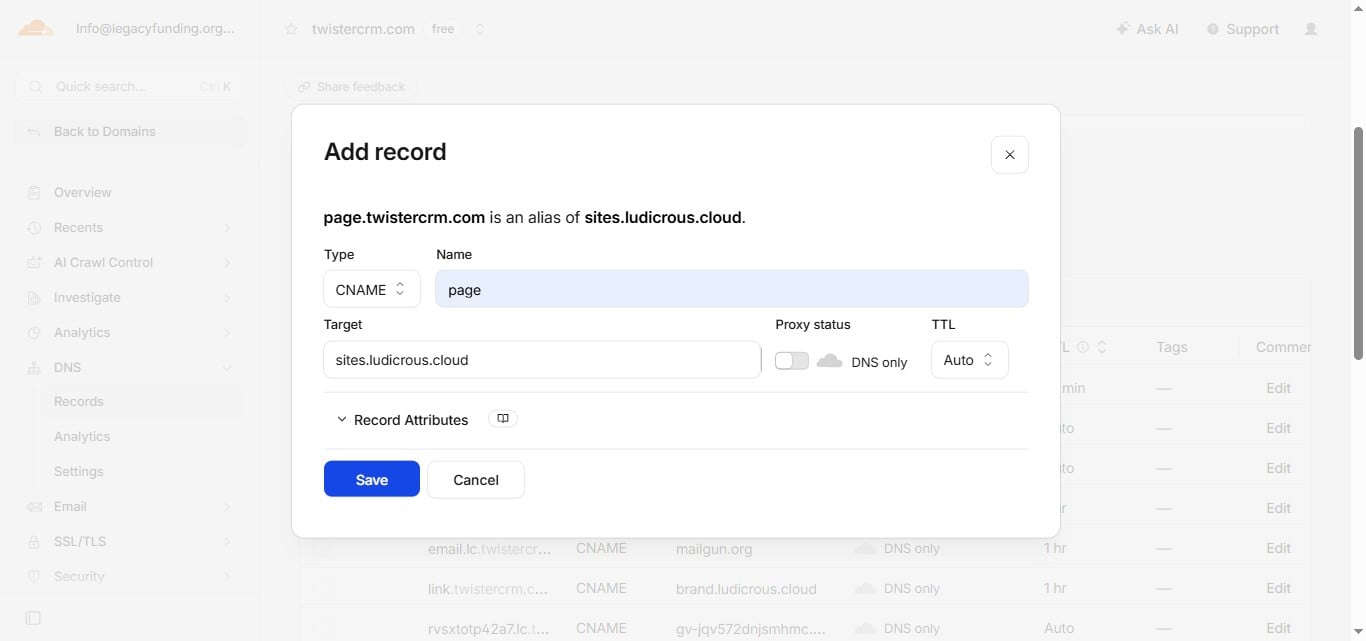
Go to your DNS provider and click "Add records"
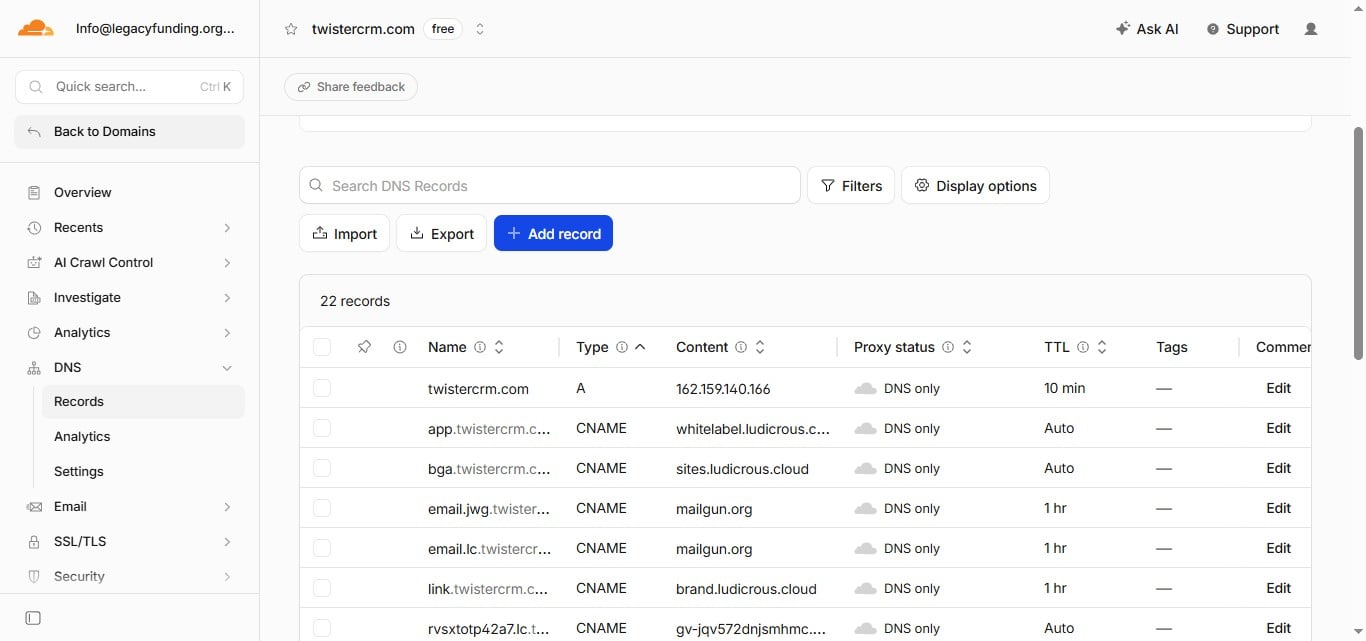
Go to your DNS provider and click "Add records"
11

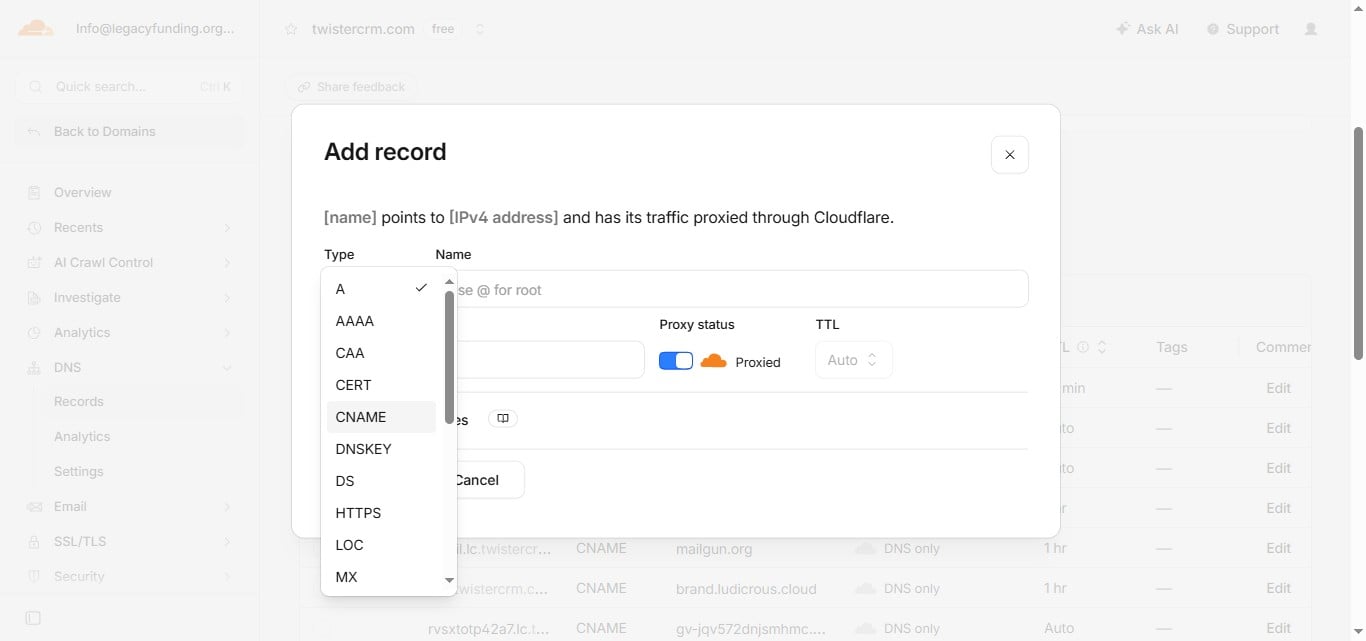
Select here to select "Record type"

Select here to select "Record type"
12

Select "CNAME"

Select "CNAME"
13

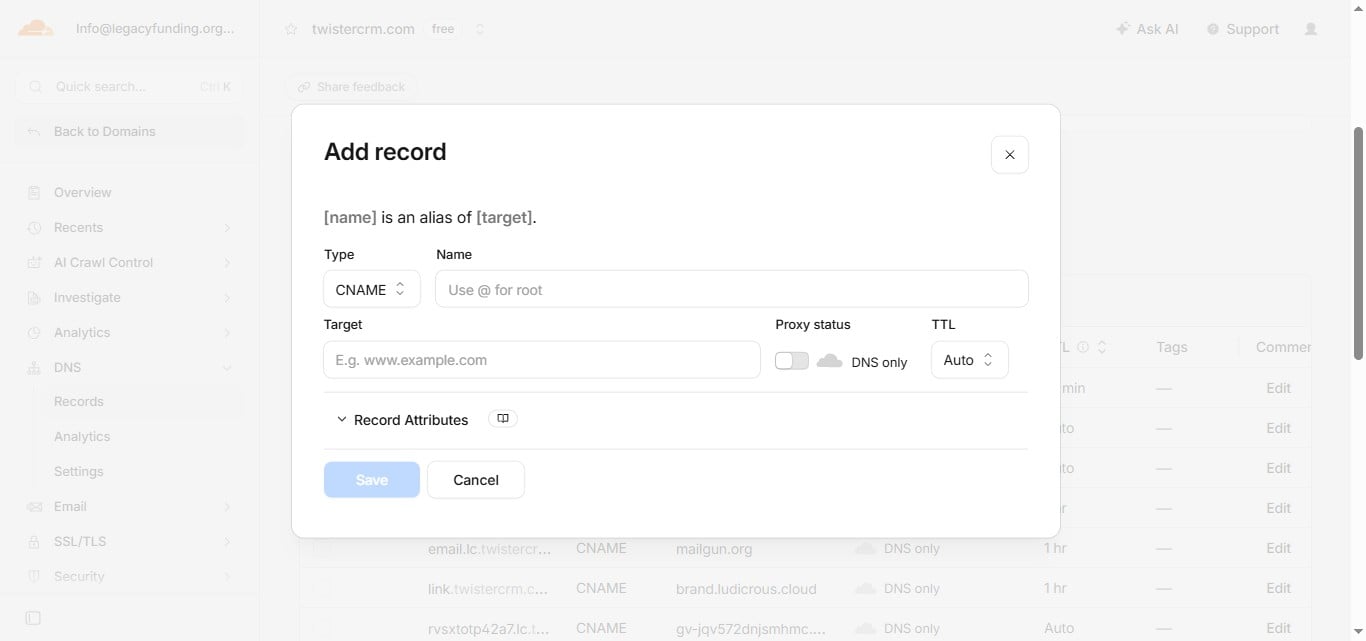
Click here and turn off the Proxy Status
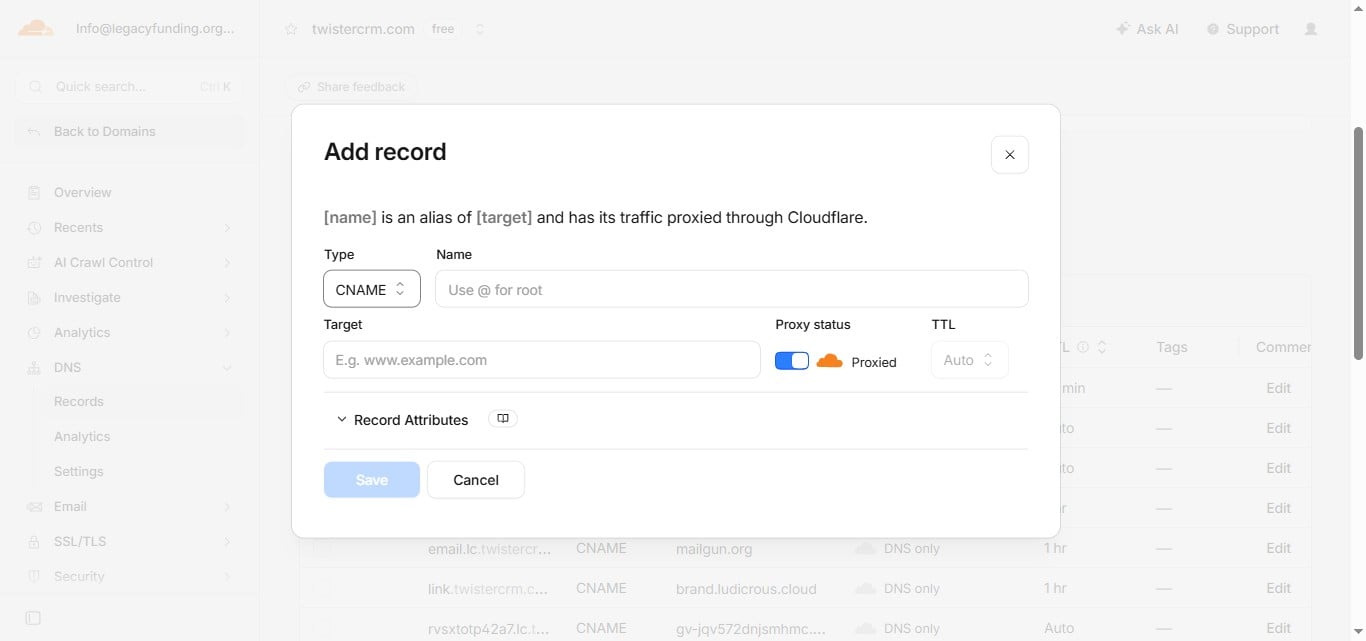
Click here and turn off the Proxy Status
14

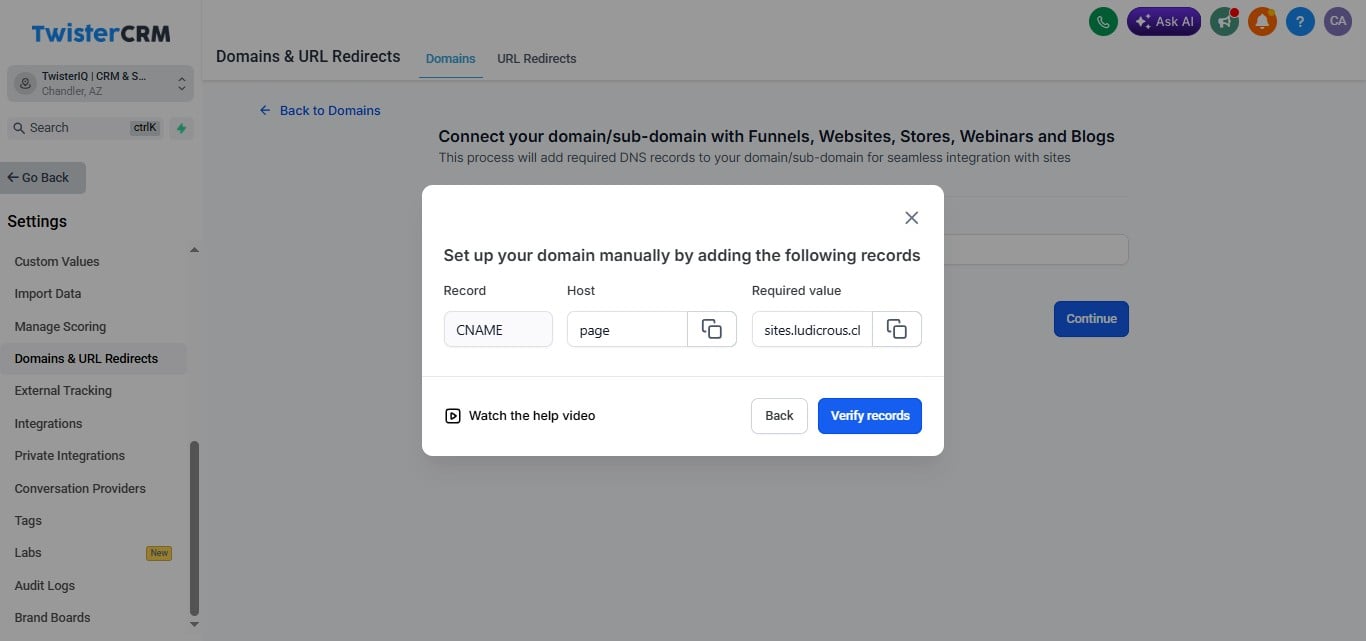
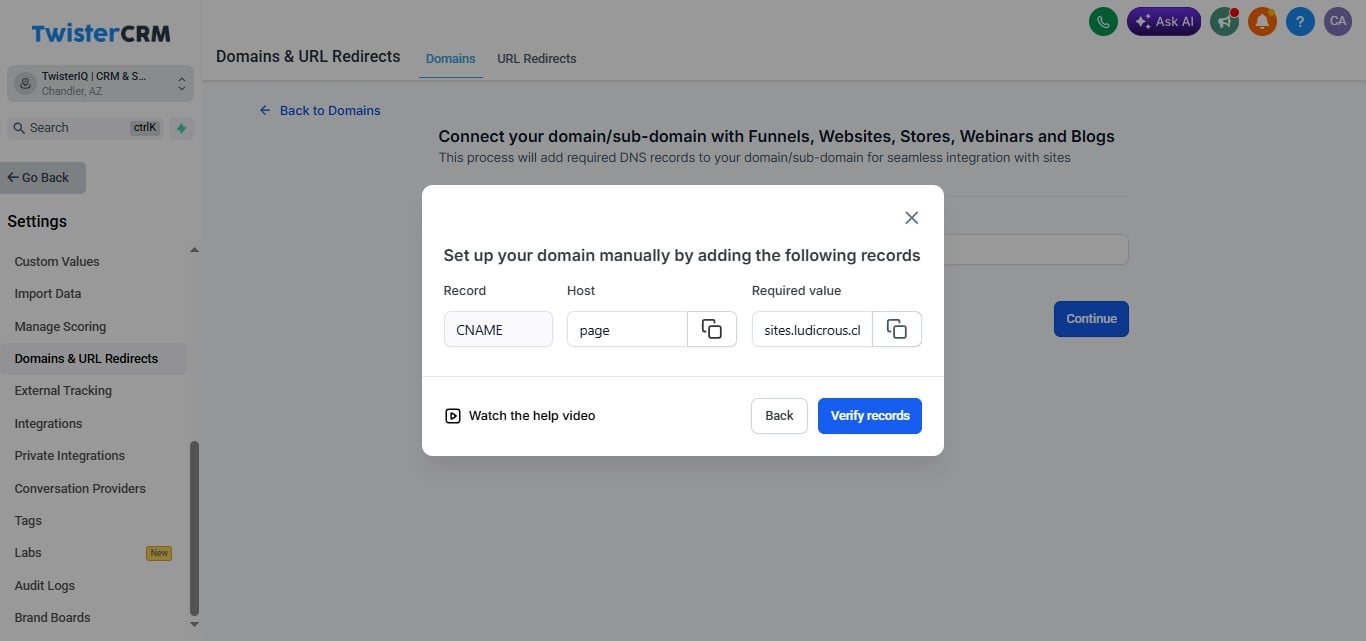
Go back to builder and copy the Host Name
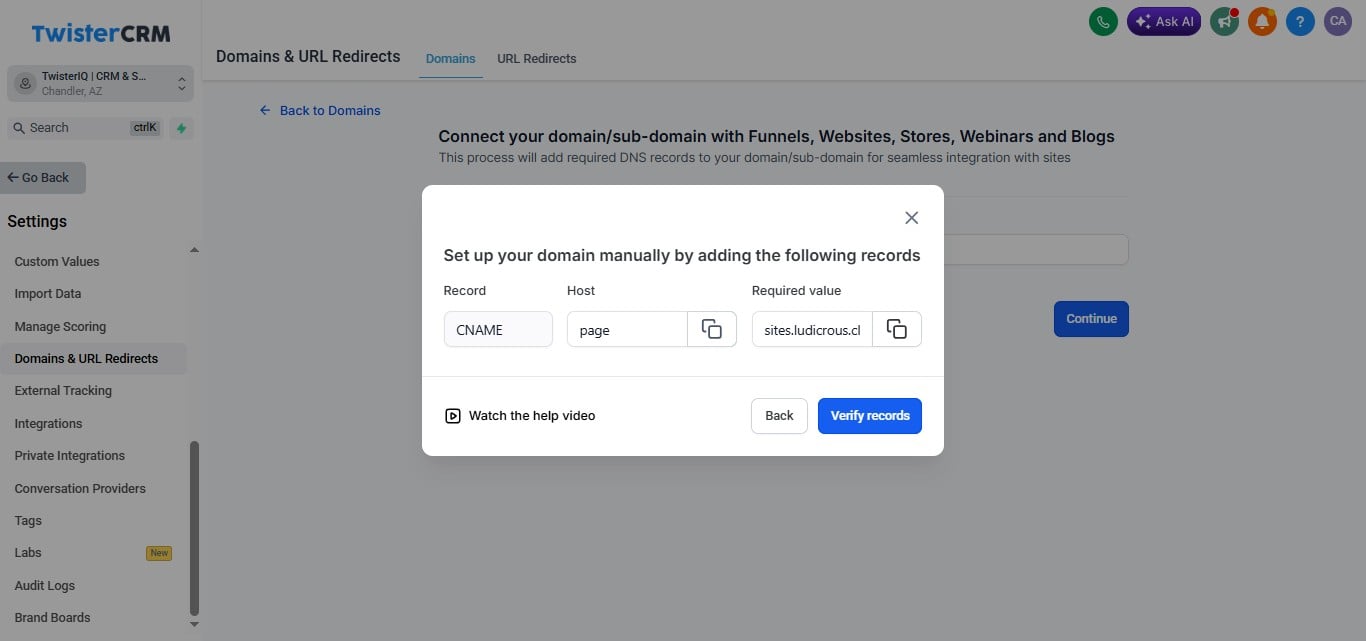
Go back to builder and copy the Host Name
15

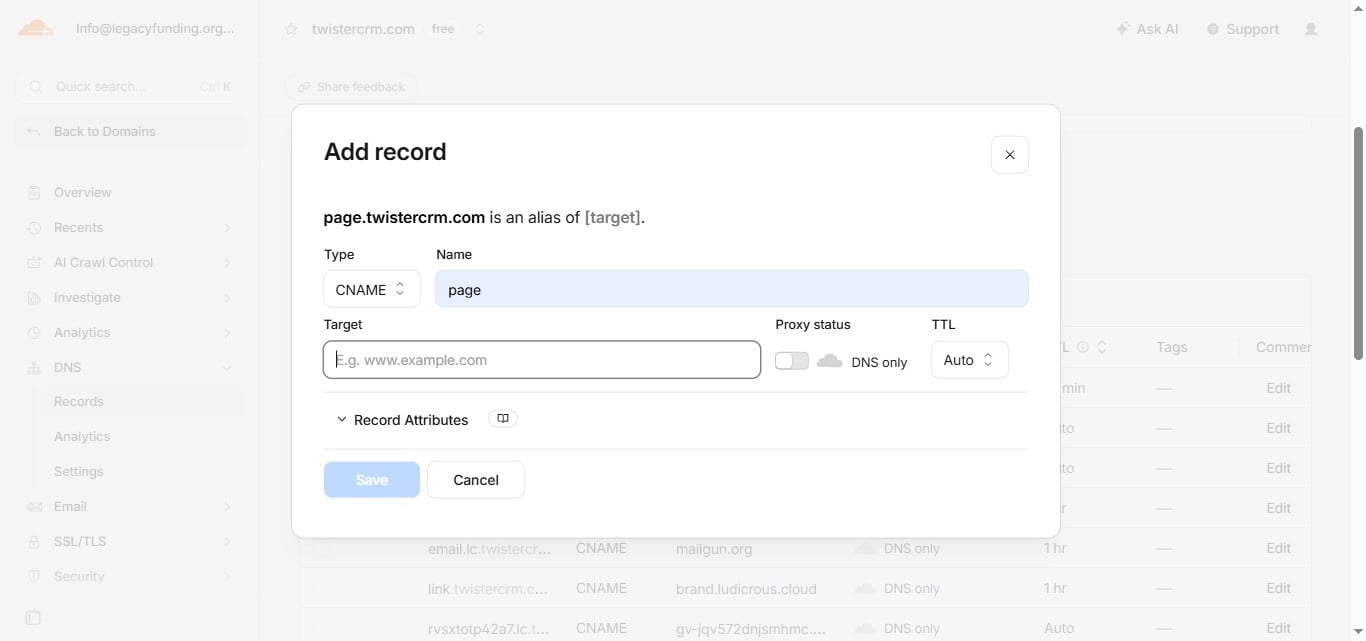
Paste Host Name here

Paste Host Name here
16

Copy the required value

Copy the required value
17

Paste Required Value in "Target"

Paste Required Value in "Target"
18

Click on "Save"

Click on "Save"
19

Click on "Verify records"

Click on "Verify records"
20

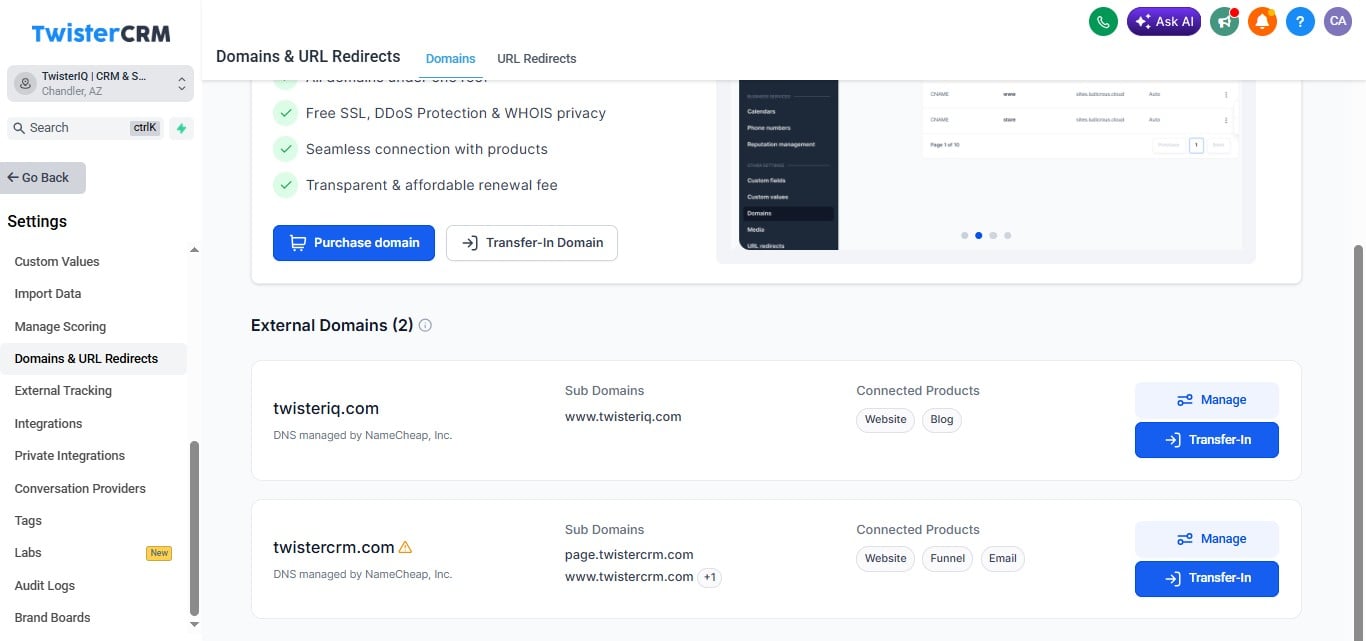
After adding records in DNS provider go back to the builder and click on "Proceed to finish"
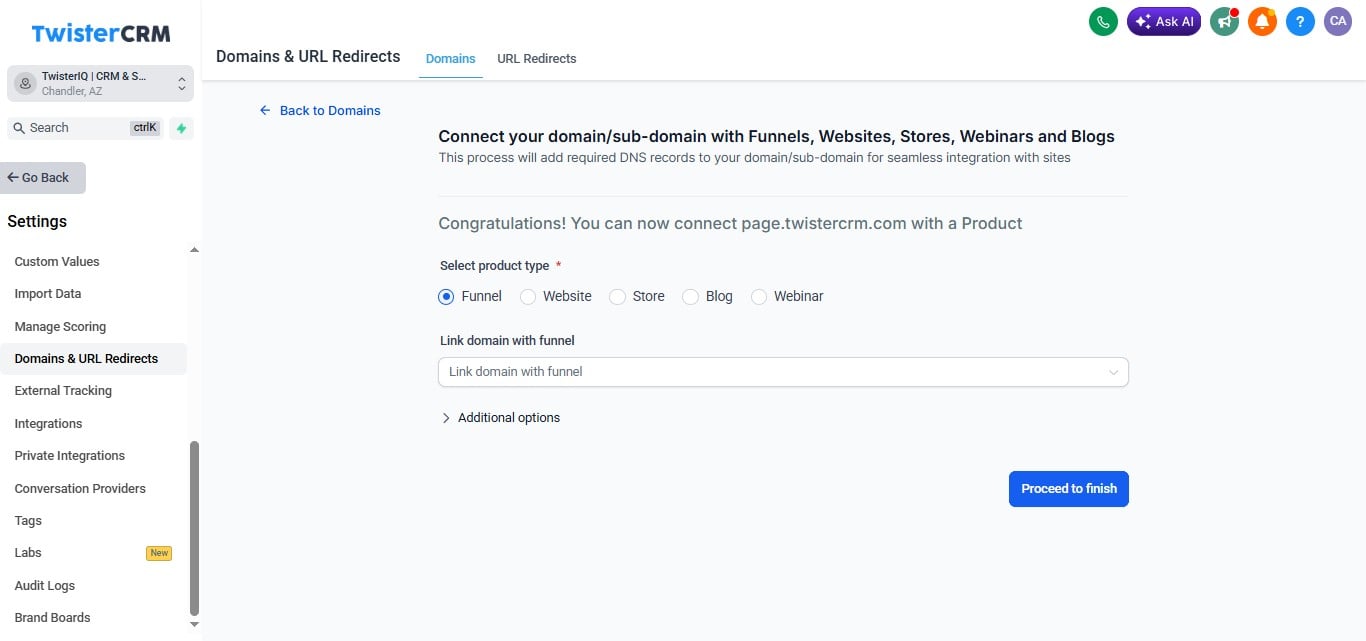
After adding records in DNS provider go back to the builder and click on "Proceed to finish"
21

After finishing, "Go Back"

After finishing, "Go Back"
22

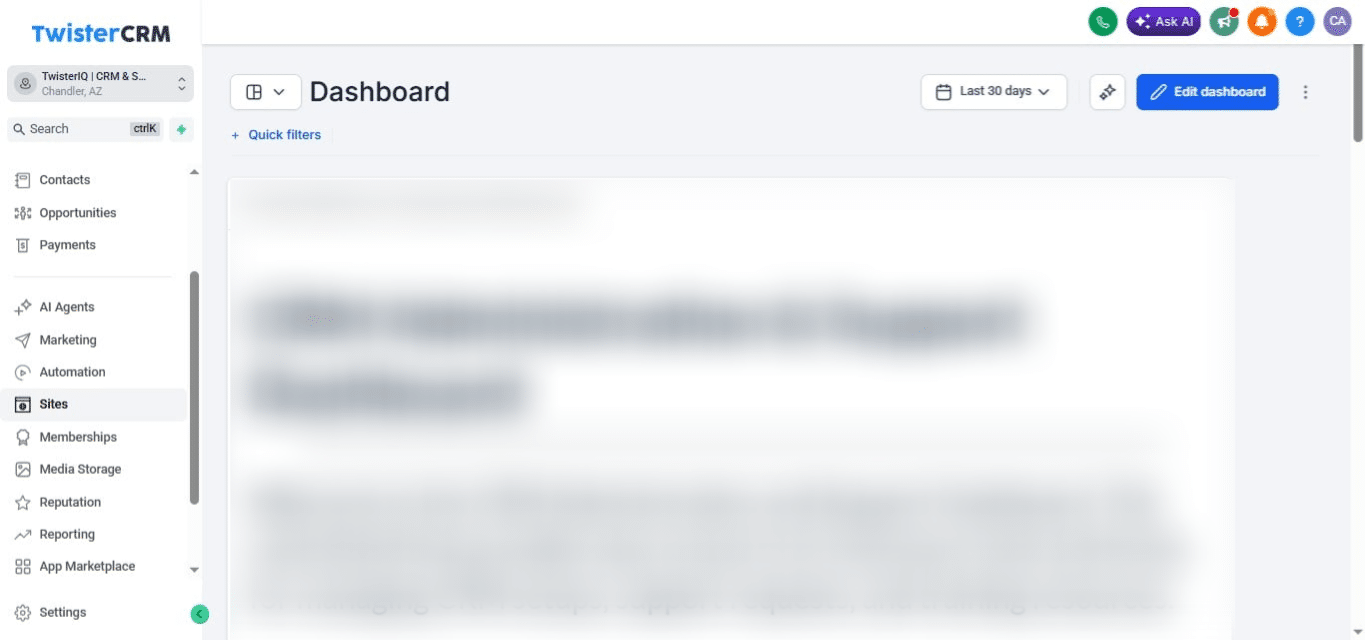
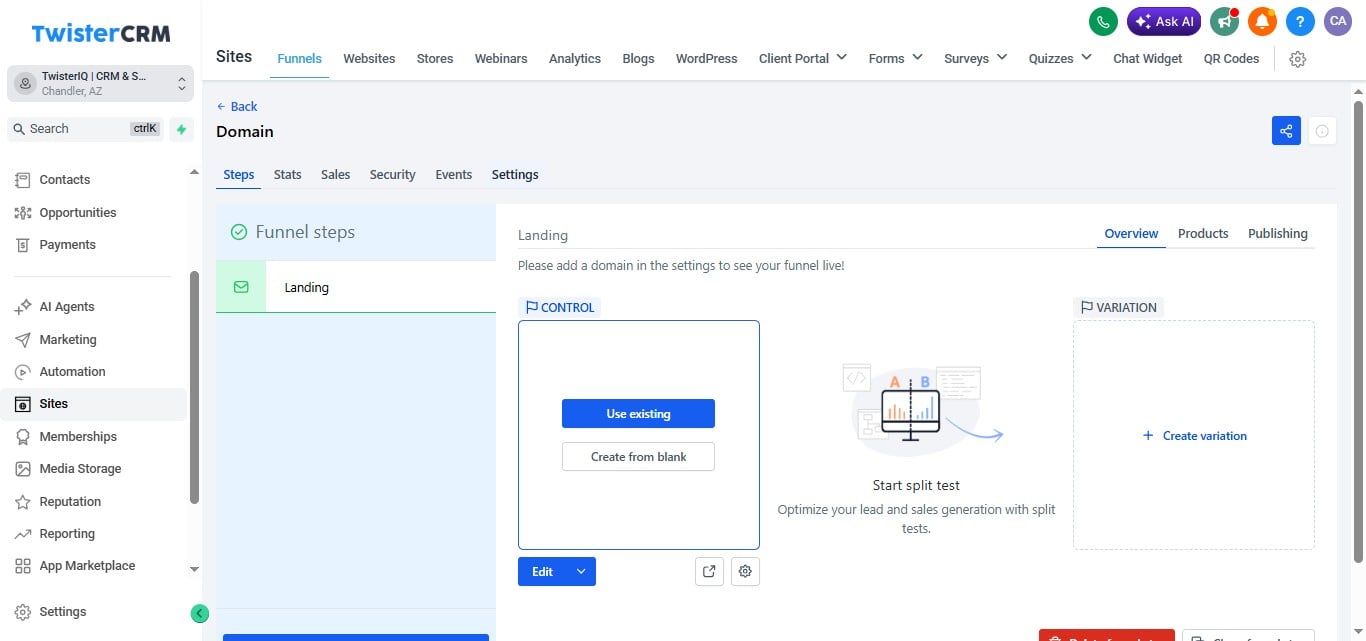
Go to Sites

Go to Sites
23

Click on the funnel to which you want to add the domain.
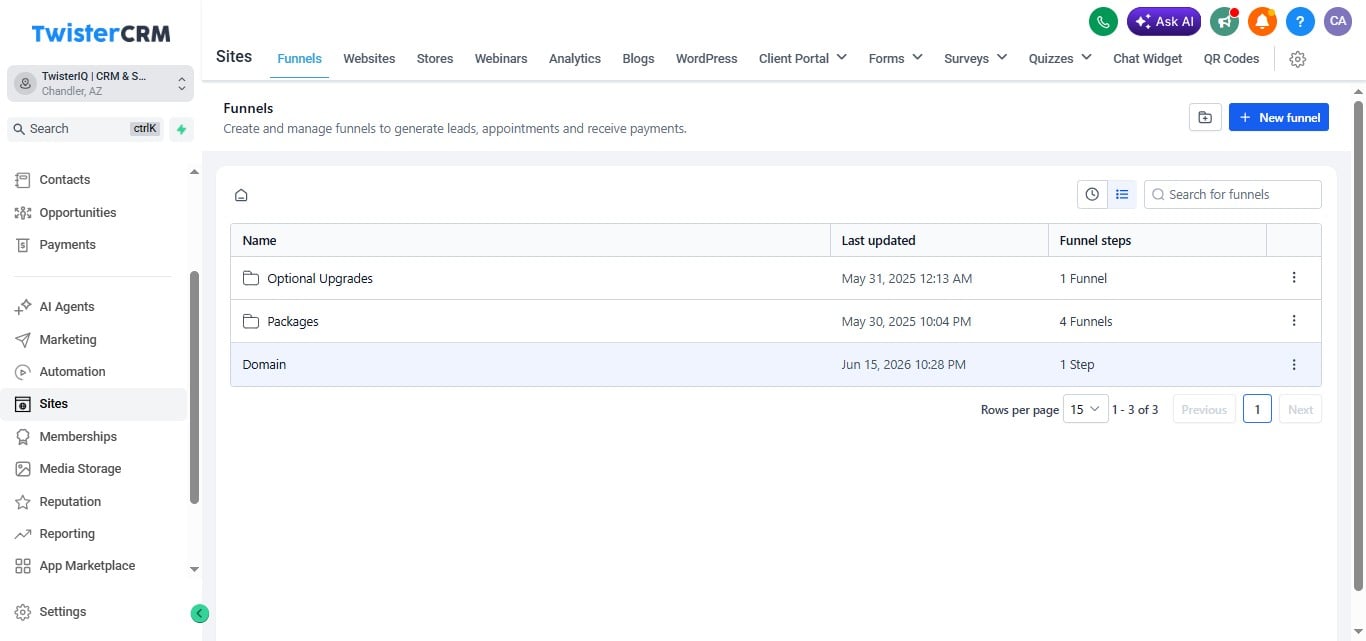
Click on the funnel to which you want to add the domain.
24

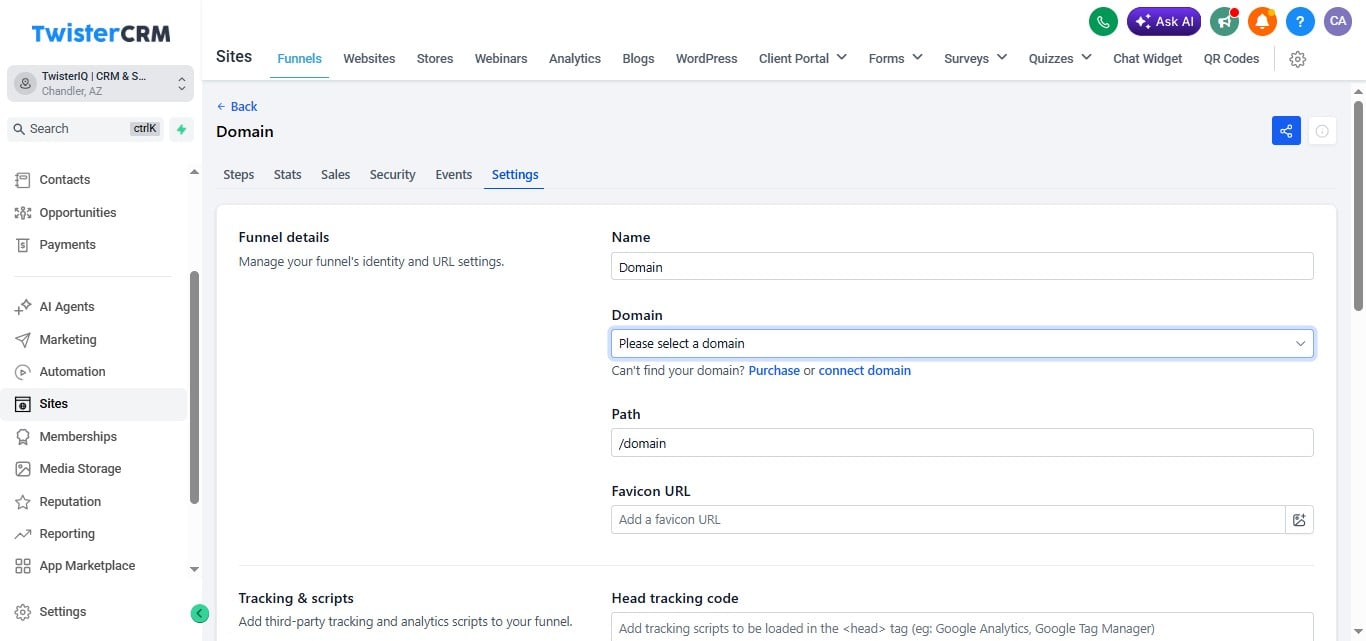
Go to "Settings"

Go to "Settings"
25

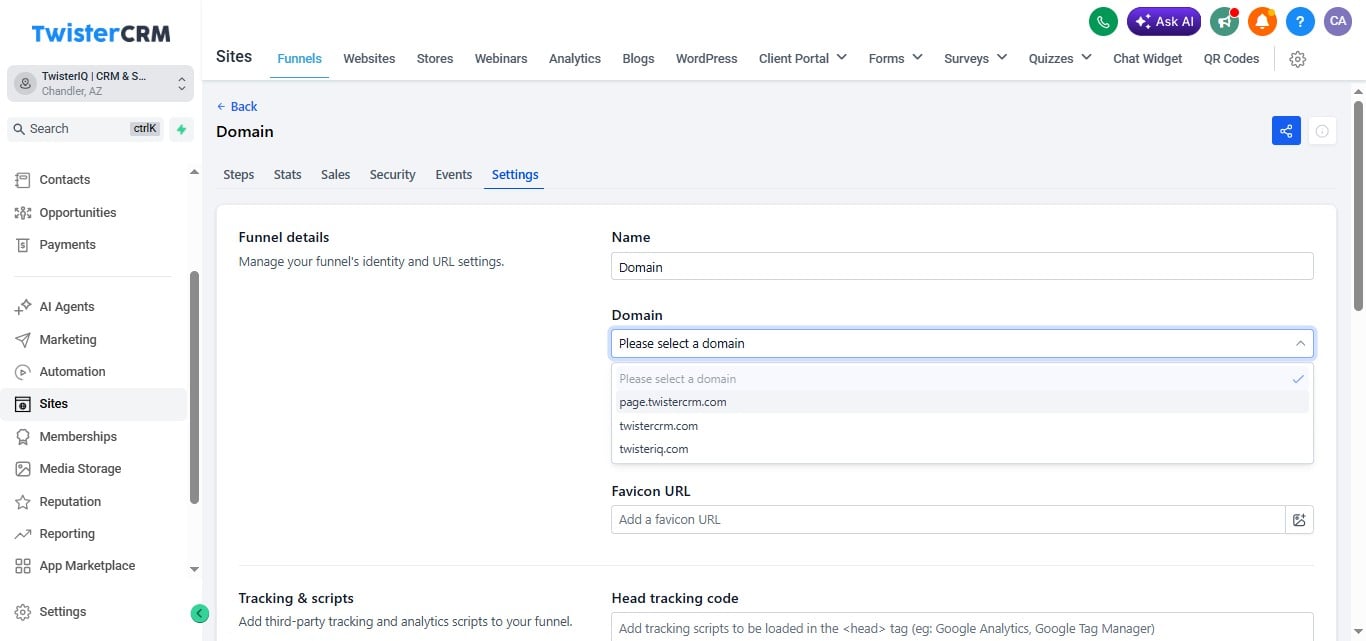
Click on "select a domain" dropdown

Click on "select a domain" dropdown
26

Select the Domain that you added

Select the Domain that you added
27

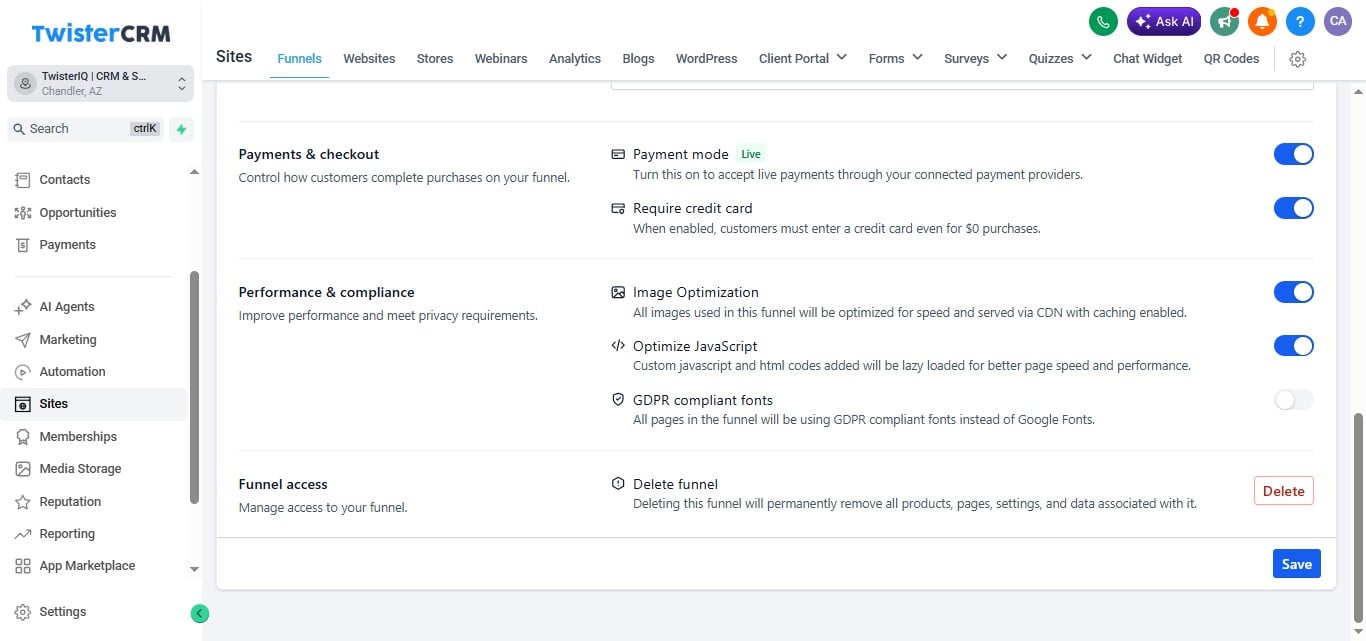
Click on "Save"

Click on "Save"
28

Done 🚀

Done 🚀